LumaConnect Admin Dashboard
The LumaConnect Admin Dashboard provides a central interface for monitoring, maintaining, and accessing your Luma Controls system. From the dashboard, you can check system status, perform maintenance tasks, access support resources and manuals, and open LumaConfig for connected modules.
Maintenance
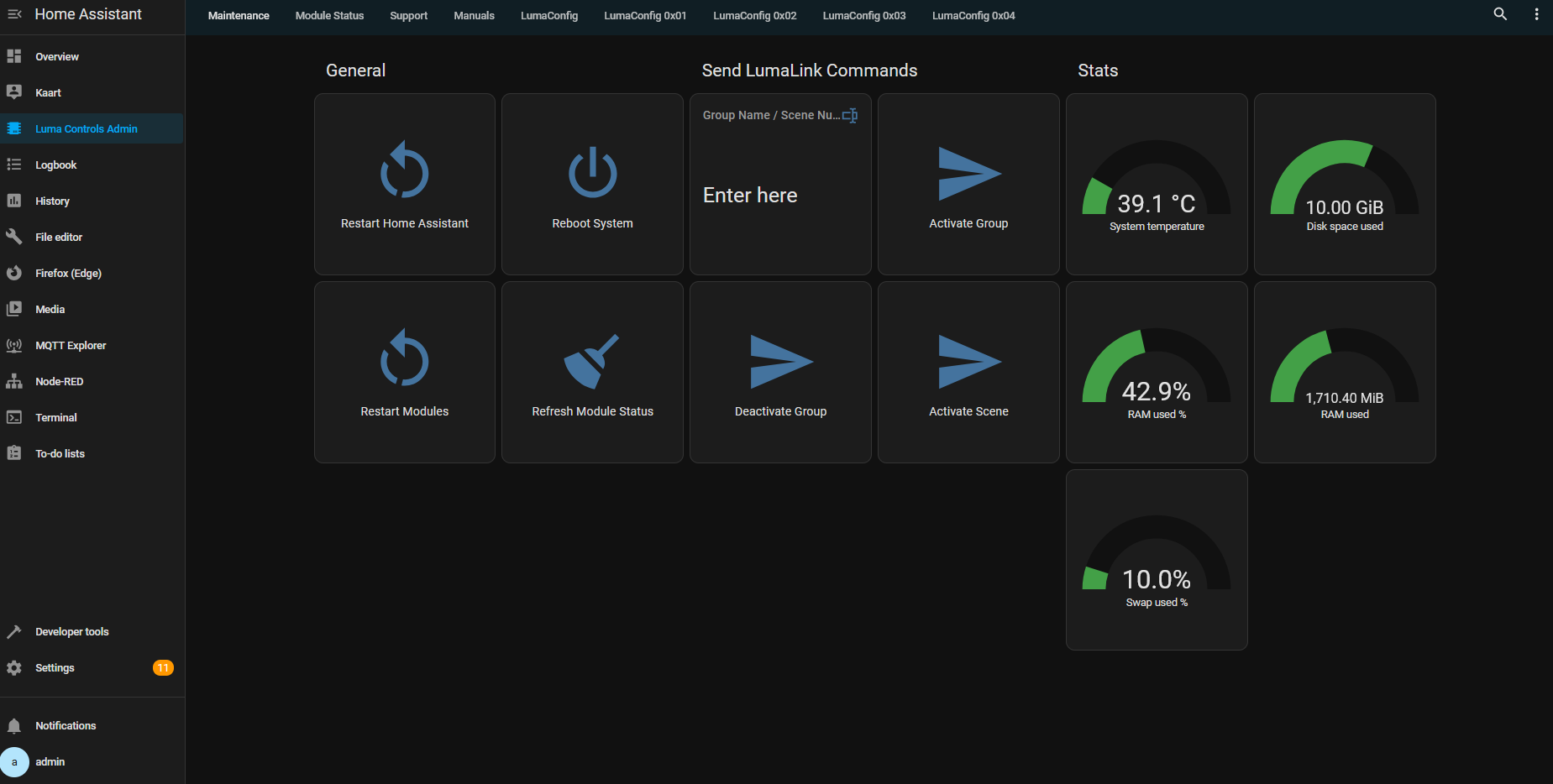
The Maintenance page provides tools for system maintenance, diagnostics, and validation. It can be used to verify system operation and assist with troubleshooting.
Available functions include:
- Reboot controls for the LumaConnect Controller and connected LumaLink modules.
- Group and Scene testing to inject LumaLink Group and Scene commands for functional testing and debugging. This provides functionality similar to the Scene/Group Tester in LumaConfig.
- System health statistics showing the status and health of the LumaConnect Controller hardware and operating system.
Status
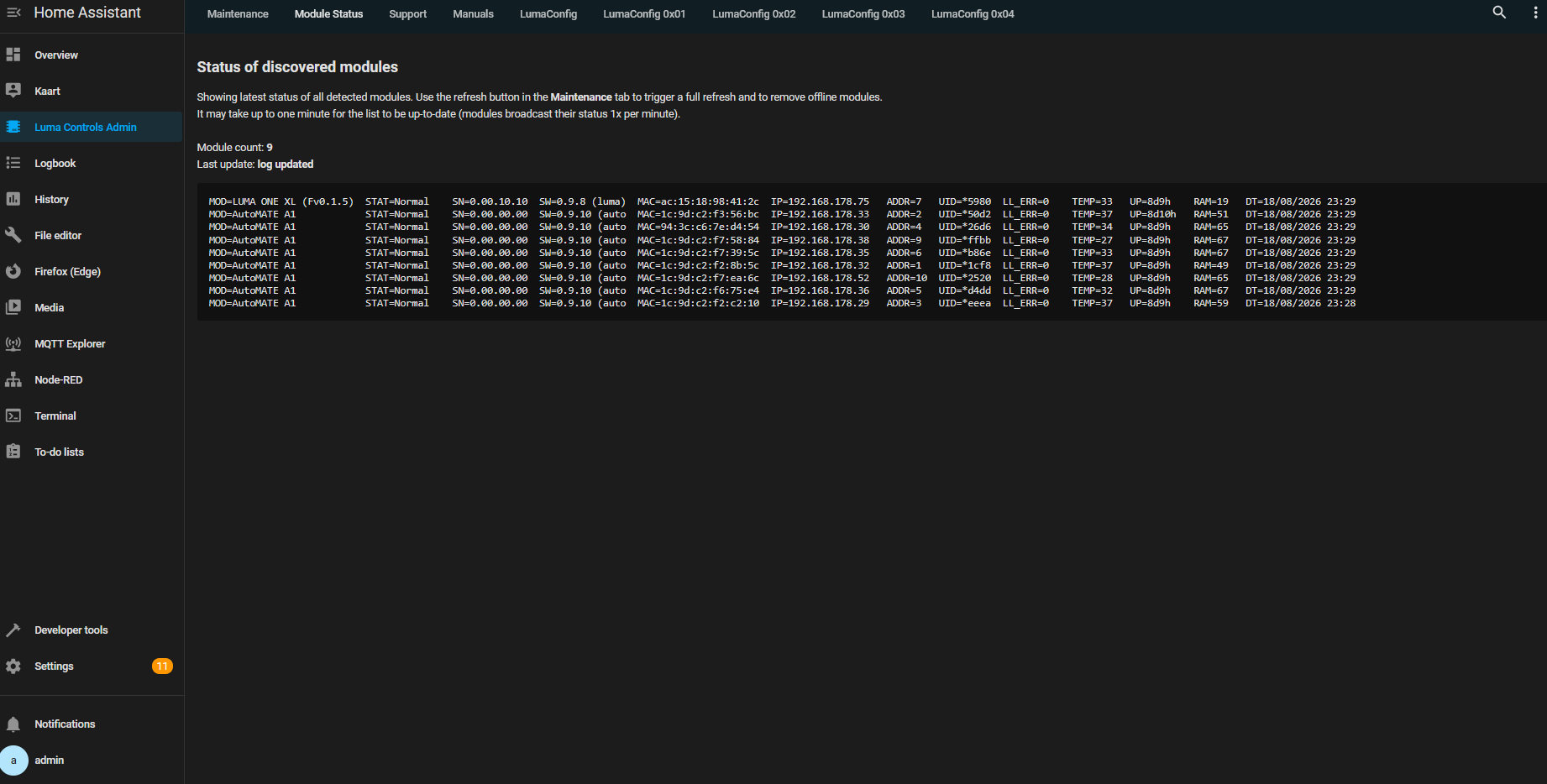
The Status page provides an overview of all connected LumaLink modules and their current state. Use this page to quickly verify that modules are online and operating correctly, and to identify potential communication or configuration issues.
Detailed descriptions of the reported status fields are available in the MQTT API – Fields documentation.
Support
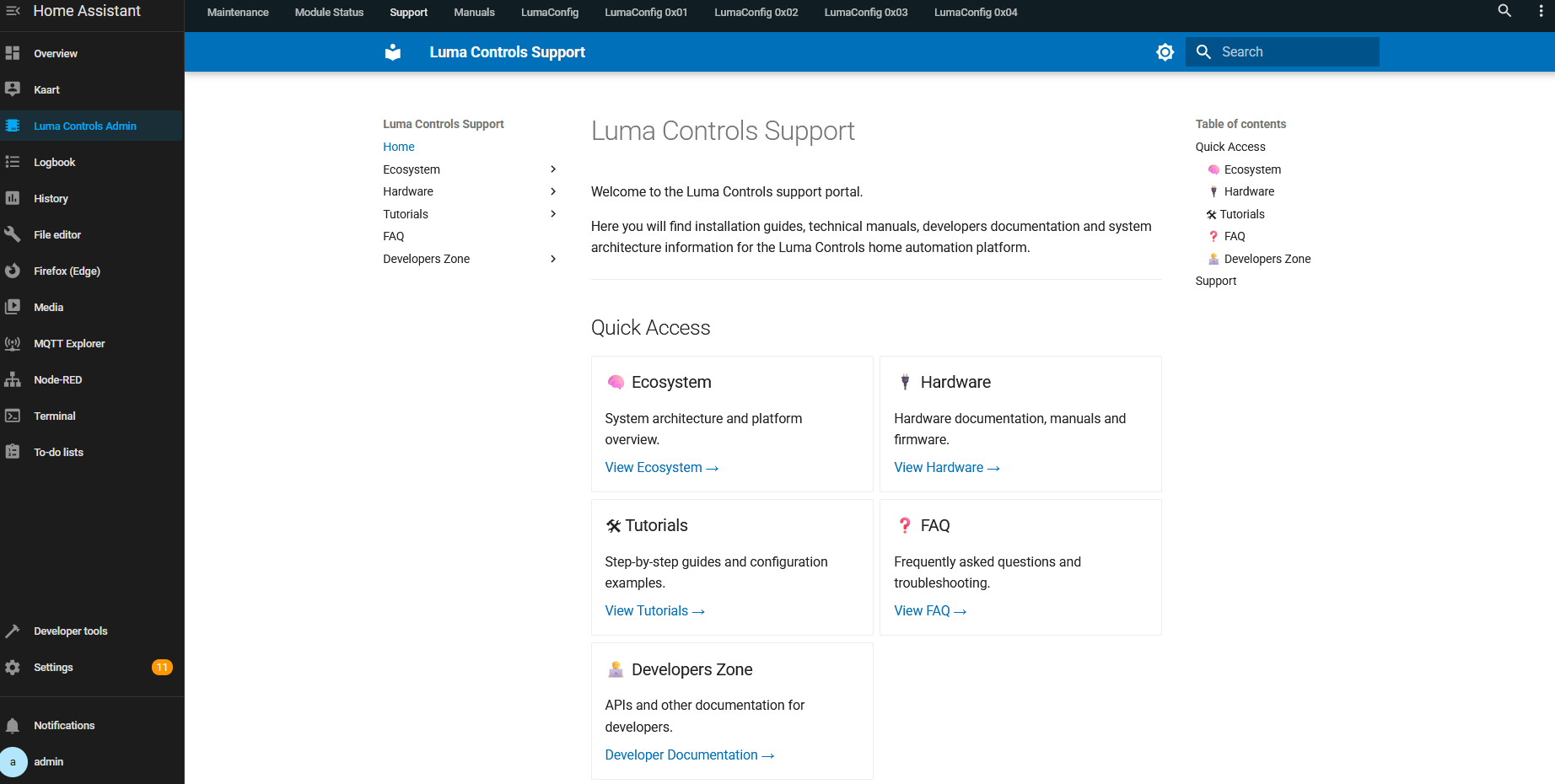
The Support page provides quick access to Luma Controls support resources and information that may be useful when troubleshooting or requesting assistance.
Manuals
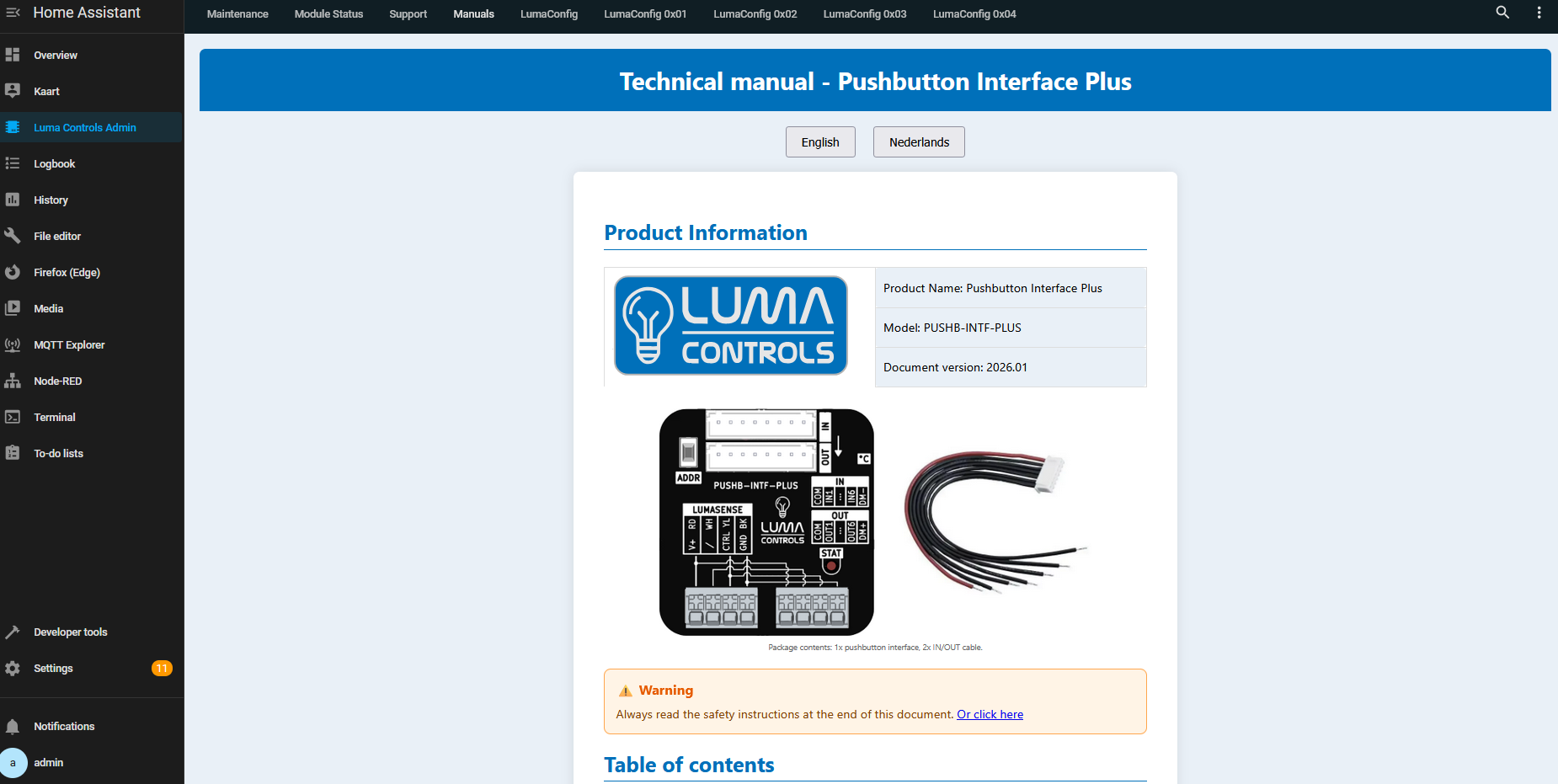
The Manuals page provides direct access to the latest Luma Controls product manuals and technical documentation.
LumaConfig
The LumaConfig page provides secure remote access to the LumaConfig interfaces of LumaLink modules connected to your system. The connection is encrypted, allowing LumaConfig to be accessed remotely without exposing the module's local interface directly.
The 0x.. number corresponds to its LumaLink address. For example, 0x01 represents the module with LumaLink address 1.
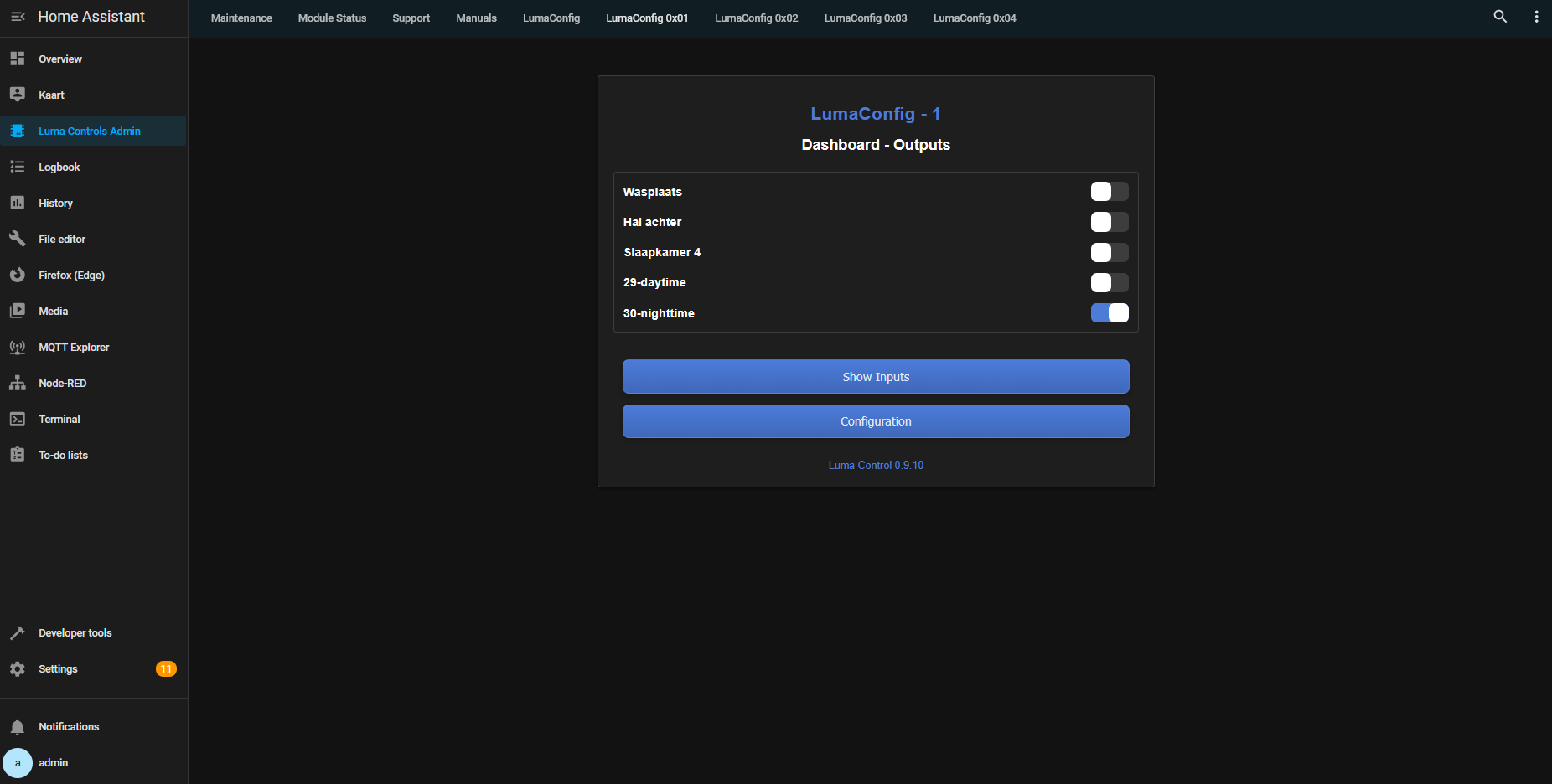
LumaConfig timeout
Depending on the LumaConfig settings of your modules, access to LumaConfig may be disabled automatically after the configured timeout period.
To temporarily enable LumaConfig, press and hold the Up + Down buttons on the front panel of a module:
- Hold for 5 seconds to enable LumaConfig for that module.
- Hold for 10 seconds to enable LumaConfig for all connected LumaLink modules on the bus (if they use the same service key).